
Introduction
PostgreSQL is a powerful, open-source relational database management system widely used in web applications, enterprise systems, and data-driven software.
If you develop applications using C#, you can connect to PostgreSQL through Npgsql, an open-source .NET data provider for PostgreSQL.
In this tutorial, we will learn how to connect a C# application to PostgreSQL, execute SQL statements, and retrieve data from the database.
By the end of this tutorial, you will have a working C# console application that communicates with a PostgreSQL database.
What you will learn
- Install PostgreSQL.
- Create a database and a database table.
- Create a C# project using .NET.
- Install the Npgsql NuGet package.
- Establish a database connection.
- Execute SQL queries from C#.
- Retrieve and display database records.
- Handle database errors and protect connection credentials.
Prerequisites
You will need:
- Basic knowledge of C# programming.
- The .NET SDK.
- A PostgreSQL database server.
- Visual Studio, Visual Studio Code, or another C# development environment.
You can install PostgreSQL from its official website:
You can download the .NET SDK from:
1. Understanding PostgreSQL and Npgsql
Before writing code, it is useful to understand how the components work together.
PostgreSQL is the database server. It stores data, executes SQL statements, and manages transactions.
Npgsql is the .NET data provider that allows C# applications to communicate with PostgreSQL.
The architecture is straightforward:
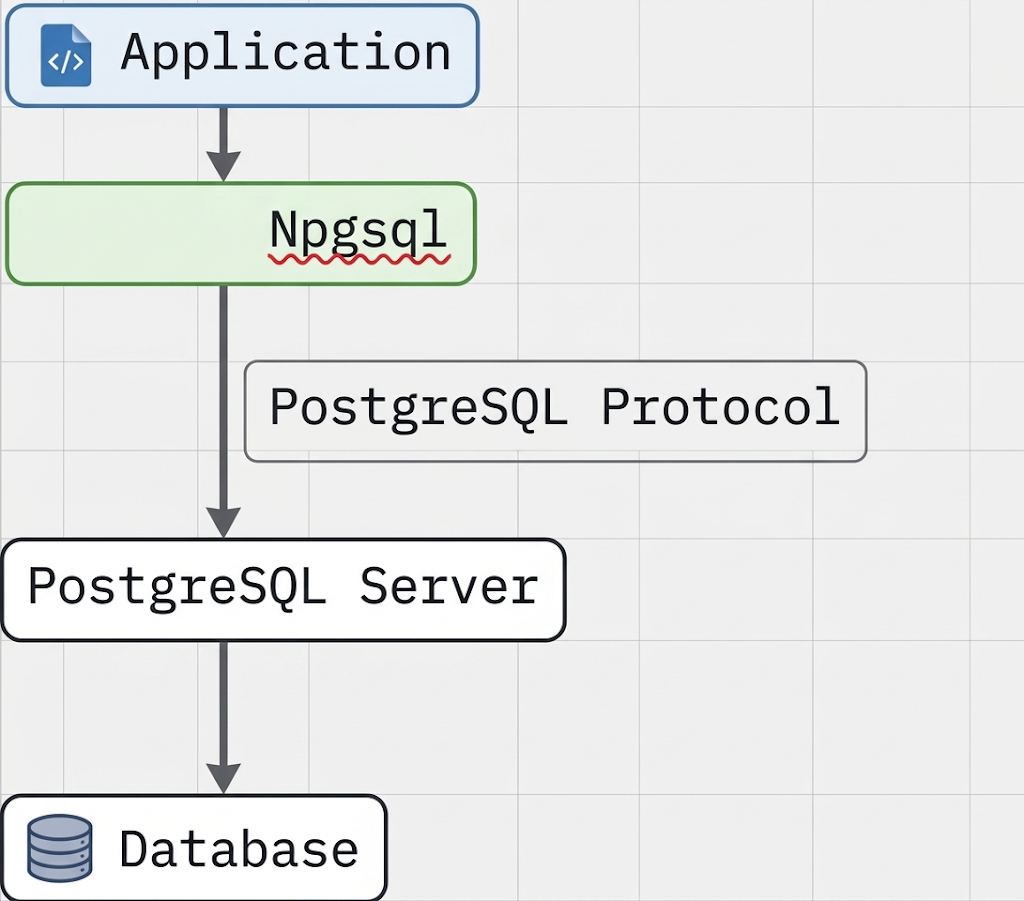
When a C# application needs data, it sends a SQL statement through Npgsql. PostgreSQL processes the statement and returns the result.
Npgsql supports asynchronous operations, parameterized queries, transactions, and other features needed for production applications.
When a C# application needs data, it sends a SQL statement through Npgsql. PostgreSQL processes the statement and returns the result.
Npgsql supports asynchronous operations, parameterized queries, transactions, and other features needed for production applications.
CREATE DATABASE mydb;Next, connect to the new database and create a table for storing sample users.
CREATE TABLE users (
    id INTEGER GENERATED ALWAYS AS IDENTITY PRIMARY KEY,
    name VARCHAR(100) NOT NULL,
    email VARCHAR(255) NOT NULL UNIQUE,
    created_at TIMESTAMPTZ NOT NULL DEFAULT CURRENT_TIMESTAMP
);
This table contains four columns:
| Column | Description |
|---|---|
id | Automatically generated primary key |
name | User’s name |
email | User’s email address; duplicates are prohibited |
created_at | Timestamp indicating when the record was created |
Insert some sample data:
INSERT INTO users (name, email)
VALUES
    ('Alice', '[email protected]'),
    ('Bob', '[email protected]');
You now have a database containing two sample records.
3. Create a C# Console Application
Open a terminal and create a new project:
dotnet new console -n DuCatPostgresDemo
cd DuCatPostgresDemo
This creates a C# console application.
Install the Npgsql package:
dotnet add package Npgsql
The package provides the classes required to connect to PostgreSQL and execute SQL commands.
You can find the official documentation at:
4. Configure the Database Connection
To connect to PostgreSQL, you need a connection string.
A typical connection string looks like this:
Host=localhost;
Port=5432;
Database=mydb;
Username=ducat_app;
Password=your_password;
The parameters mean:
| Parameter | Purpose |
|---|---|
Host | PostgreSQL server hostname or IP address |
Port | PostgreSQL listening port; commonly 5432 |
Database | Database name |
Username | PostgreSQL account |
Password | Account password |
For this tutorial, PostgreSQL is running on the same computer as the C# application, so localhost is appropriate.
For a real application, avoid placing production credentials directly in source code. Use an environment variable, a secret manager, or another secure configuration mechanism.
For example, you can set an environment variable named ConnectionStrings__Postgres to hold the connection string.
On Windows PowerShell:
ConnectionStrings__Postgres = "Host=localhost;Port=5432;Database=mydb;Username=ducat_app;Password=your_password"On Linux:
export ConnectionStrings__Postgres='Host=localhost;Port=5432;Database=mydb;Username=ducat_app;Password=your_password'These commands set the variable for the current shell session. They are suitable for local testing, but you should use an appropriate secrets-management approach for production deployments.
For better security, create a dedicated database account with only the permissions your application needs instead of using the PostgreSQL administrator account.
5. Write Your First C# Database Program
Open Program.cs and replace its contents with the following code:
using Npgsql;

string? connectionString =
    Environment.GetEnvironmentVariable(
        "ConnectionStrings__Postgres");

if (string.IsNullOrWhiteSpace(connectionString))
{
    Console.WriteLine(
        "Database connection string is not configured.");

    return;
}

try
{
    await using var connection =
        new NpgsqlConnection(connectionString);

    await connection.OpenAsync();

    Console.WriteLine("Connected to PostgreSQL!");

    const string sql = """
        SELECT id, name, email, created_at
        FROM users
        ORDER BY id;
        """;

    await using var command =
        new NpgsqlCommand(sql, connection);

    await using var reader =
        await command.ExecuteReaderAsync();

    while (await reader.ReadAsync())
    {
        int id = reader.GetInt32(0);
        string name = reader.GetString(1);
        string email = reader.GetString(2);
        DateTime createdAt = reader.GetDateTime(3);

        Console.WriteLine(
            $"{id}: {name} | {email} | {createdAt:O}");
    }
}
catch (NpgsqlException ex)
{
    Console.WriteLine(
        $"PostgreSQL error: {ex.Message}");
}
How the code works
Step 1: Load the connection string
The program retrieves the connection string from an environment variable rather than embedding the password in the source code.
Step 2: Create a connection
await using var connection =
    new NpgsqlConnection(connectionString);
This creates an Npgsql connection object. The connection is opened in the next step.
The await using statement ensures that the connection is disposed of when the program finishes using it.
Step 3: Open the connection
await connection.OpenAsync();
This establishes the database connection asynchronously.
Step 4: Execute the SQL query
await using var command =
    new NpgsqlCommand(sql, connection);
The command object associates the SQL statement with the database connection.
Step 5: Read the results
await using var reader =
    await command.ExecuteReaderAsync();
The data reader allows the application to process the returned rows one at a time.
The program then prints each user’s ID, name, email address, and creation timestamp.
6. Run the Application
Ensure that PostgreSQL is running and that the database, table, and sample records have been created.
Set the connection string environment variable, as shown earlier.
Then execute:
dotnet runIf the connection succeeds, you should see output similar to this:
Connected to PostgreSQL!
1: Alice | [email protected] | 2026-10-31T...
2: Bob | [email protected] | 2026-10-31T...
The timestamps will depend on when the records were inserted.
Congratulations! Your C# application has successfully connected to PostgreSQL and retrieved database records.
7. Common Connection Problems
Database connections can fail for several reasons.
Problem 1: Connection refused
Example error:
Connection refusedPossible causes include:
- PostgreSQL is not running.
- The hostname is incorrect.
- PostgreSQL is listening on a different port.
- A firewall is blocking the connection.
Check the PostgreSQL service and confirm that the configured hostname and port are correct.
Problem 2: Password authentication failed
Example error:
password authentication failed for userCheck the username and password.
Also verify that the PostgreSQL account exists and is allowed to authenticate using the configured authentication method.
Problem 3: Database does not exist
Example error:
database "mydb" does not existCheck the database name in the connection string.
You can list databases using the PostgreSQL command-line utility:
\l
Problem 4: Relation does not exist
Example error:
relation "users" does not existMake sure the users table was created in the correct database and schema.
PostgreSQL normally searches the schemas in the connection’s search_path. If you created the table in a different schema, you may need to qualify the table name.
8. Security Best Practices
When developing a database application, it is important to follow good security practices from the beginning.
Never concatenate untrusted input into SQL statements.
For example, avoid constructing a query like this:
string sql =
    "SELECT * FROM users WHERE email = '" +
    email + "'";
If the email value contains specially crafted SQL input, the resulting query may behave unexpectedly or expose data.
Use parameterized queries instead:
const string sql = """
    SELECT id, name, email
    FROM users
    WHERE email = @email;
    """;

await using var command =
    new NpgsqlCommand(sql, connection);

command.Parameters.AddWithValue("email", email);

await using var reader =
    await command.ExecuteReaderAsync();
This approach separates SQL instructions from the supplied data and helps prevent SQL injection.